

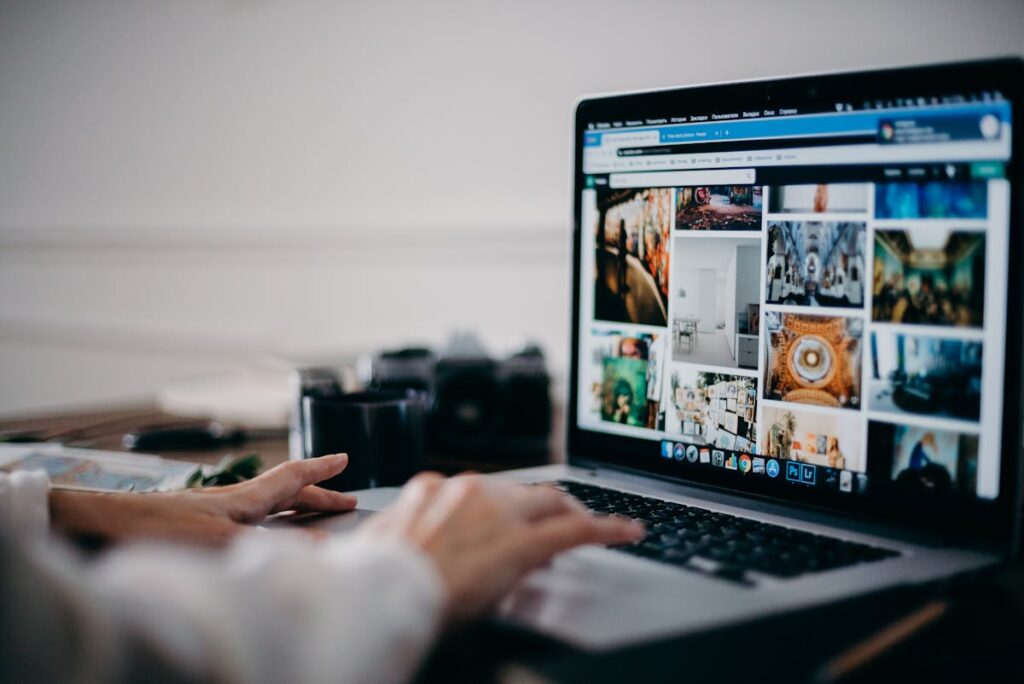
Photo editing has been transformed by AI tools that automate complex tasks that previously required years of Photoshop expertise. From one-click sky replacement and portrait retouching to content-aware fill and intelligent color grading, AI photo editing tools deliver professional results in seconds. This guide covers the best AI photo editing tools for designers, practical workflows for common editing tasks, and techniques for getting the most from AI-assisted editing.
Best AI Photo Editing Tools
1. Adobe Photoshop with Firefly
Adobe Photoshop remains the industry standard, now supercharged with Firefly AI. Generative Fill lets you select any area and generate new content, replace backgrounds, or extend images using text prompts. Generative Expand extends canvas boundaries with AI-generated content that seamlessly matches the original. Neural Filters include Smart Portrait (adjust expressions, age, gaze), Landscape Mixer, Color Transfer, and Harmonization. Select Subject uses AI for one-click subject isolation with edge accuracy rivaling manual masking.
Photoshop’s advantage: full non-destructive editing control. AI features work within Photoshop’s layer system, meaning you can refine, mask, blend, and adjust AI-generated content with professional precision.
2. Luminar Neo
Luminar Neo by Skylum is built entirely around AI-powered editing. Standout features: Sky AI replaces skies with one click while adjusting scene lighting to match. Relight AI adds light sources to any scene — place virtual lights to illuminate dark areas or create dramatic lighting. Body AI and Face AI provide non-destructive portrait retouching. GenErase removes objects using generative AI fill. Enhance AI applies intelligent exposure, contrast, and color corrections with a single slider.
Pricing: $14.95/month or $149 one-time purchase (with extensions available as add-ons).
3. Clipdrop by Stability AI
Clipdrop offers a suite of focused AI editing tools accessible through a web browser: Remove Background, Cleanup (remove objects), Relight (change lighting), Replace Background (AI-generated backgrounds), Uncrop (expand images), and Reimagine (generate variations of existing images). Each tool does one thing exceptionally well, making Clipdrop ideal for quick, specific edits without opening a full editing application.
4. Pixlr
Pixlr is a free browser-based editor with AI features including background removal, object removal, and AI image generation. Pixlr X (simplified) and Pixlr E (advanced) cover different skill levels. For designers who need quick edits without installing software, Pixlr provides capable AI editing in the browser.
5. Lightroom AI Features
Adobe Lightroom focuses on photographic editing with AI enhancements: Denoise uses AI to remove noise while preserving detail (dramatically better than traditional noise reduction). AI Masks automatically detect and create masks for subjects, skies, backgrounds, and specific objects. Adaptive Presets apply different adjustments to detected subjects vs. backgrounds automatically. Lens Blur simulates depth of field with AI depth detection.
AI Editing Workflows for Common Tasks
Product Photo Enhancement
Start with background removal (Remove.bg or Photoshop Select Subject). Place on a clean white or contextual background. Use Luminar Neo or Lightroom AI for color correction and exposure optimization. Apply sharpening appropriate for your output medium (web vs. print). For e-commerce, maintain consistent lighting and perspective across all product images.
Portrait Retouching
Use Lightroom’s AI Masks to select the subject. Apply skin smoothing judiciously — visible but not plastic. Use Photoshop’s Neural Filter Smart Portrait for subtle expression adjustments. Retouch blemishes with Generative Fill (select area, prompt: “clear skin matching surrounding area”). Professional retouching philosophy: enhance, do not transform. The person should look like themselves on their best day.
Landscape Enhancement
Luminar Neo’s Sky AI for dramatic sky replacement. Lightroom’s AI Masks to separately edit sky and foreground. Photoshop Generative Expand to create wider panoramic compositions from single shots. Let’s Enhance or Topaz Gigapixel for upscaling to print resolution.
Ethics of AI Photo Editing
AI makes dramatic photo manipulation trivially easy, which raises ethical considerations. For editorial and journalistic photography, AI manipulation beyond basic color correction is generally considered unethical. The National Press Photographers Association (NPPA) Code of Ethics prohibits manipulating images in ways that mislead viewers. For commercial, advertising, and creative work, AI editing is standard practice, but disclosure is increasingly expected and sometimes legally required. Always consider whether your edits might mislead the viewer and whether disclosure is appropriate for your context.
Frequently Asked Questions
Will AI replace the need to learn Photoshop?
For basic edits (background removal, color correction, object removal), yes — AI tools handle these without Photoshop knowledge. For complex compositing, precise masking, advanced color grading, and professional production work, Photoshop expertise remains essential. The most effective approach is using AI tools for speed and Photoshop for precision when needed.
Which AI photo editor is best for beginners?
Luminar Neo for desktop editing — its AI-first approach means professional results with minimal learning. Clipdrop for web-based quick edits — each tool does one thing and requires zero expertise. Canva for combining photo editing with design — accessible interface with AI assistance built in.
Conclusion
AI photo editing tools have compressed what used to take hours of skilled Photoshop work into seconds of intelligent automation. For designers, this means faster turnaround on client projects, more time for creative direction rather than manual production, and the ability to offer photo editing services without deep retouching expertise. The key is knowing which tool to use for which task and maintaining ethical standards as the technology makes ever more dramatic manipulations possible.
Create Your Own QR Code for Free — Need a custom QR code for your project, business, or personal use? Try our free QR code generator to create high-quality QR codes instantly in PNG, SVG, and more formats.