

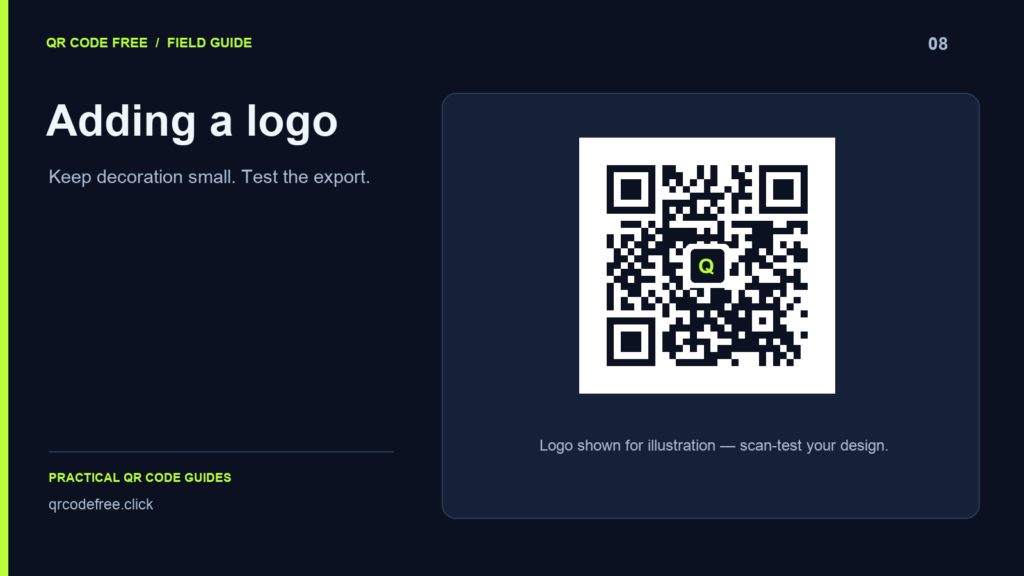
A logo can make a QR code recognisable, but it also obscures part of the encoded pattern. There is no universal logo size that guarantees a scan. Error-correction percentages are not safe image-area budgets.
Start with a working plain code
- Enter the final content in the generator.
- Use square modules, dark foreground and a plain light background.
- Download and scan the plain version first.
- Add the logo, compare the result and scan the exported file again.
This separates a payload or destination problem from a design problem. If the plain code does not work, adding a logo cannot fix it.
Keep the logo small and structural patterns clear
Keep the three large corner finder patterns visible and preserve the quiet zone. A central position can avoid those corners, but larger QR versions also contain internal alignment patterns. Centring a logo does not automatically make it safe.
The current tool displays a logo at approximately 20% of the pattern’s width, with a surrounding background patch. That is different from covering 20% of the total pattern area. Inspect the result and treat the size as a design setting that still needs testing.
Use correction carefully
Try level H when adding a logo, while allowing for the additional density it may require. DENSO WAVE’s restoration percentages concern codewords; they do not promise that any block of that percentage of the image can be removed.
Check PNG, SVG and the final layout
Open the actual downloaded file and confirm that the logo is present, correctly positioned and not distorted. A raster logo remains raster content inside an SVG. Then test the completed layout or a physical print sample at its intended size.
Try more than one phone and realistic viewing conditions. If scanning becomes inconsistent, reduce or remove the logo, shorten the payload or increase the physical size. Reliability is more useful than a larger brand mark.
Reference: DENSO WAVE: error correction. Also read the quiet zone guide.