

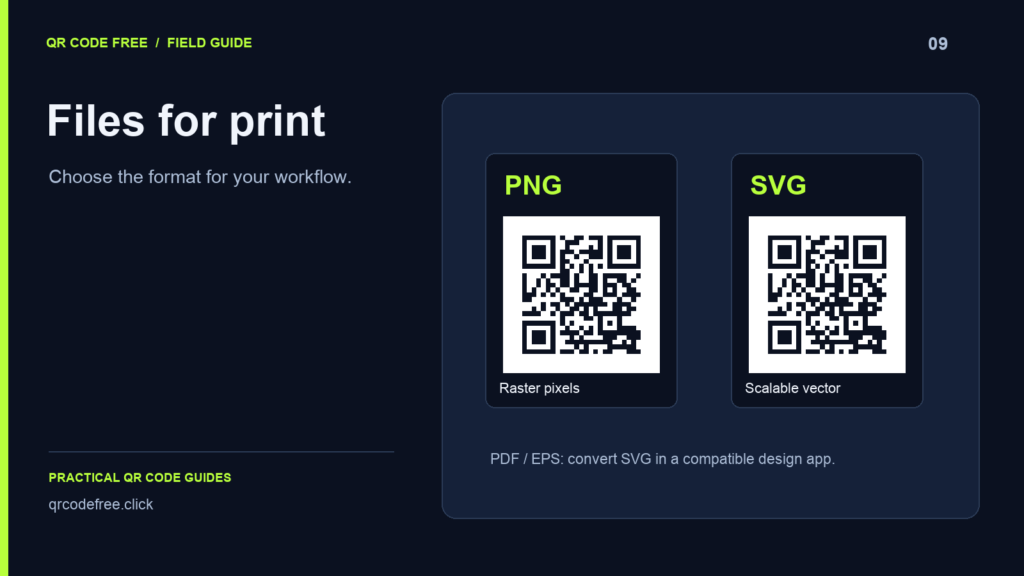
Choose a QR file format according to the application and printer that will use it. PNG stores pixels; SVG stores the QR pattern as shapes. PDF and EPS can be useful production formats, but this generator does not export them directly.
PNG: a fixed raster image
Use PNG when your document or publishing application needs an image. Its pixel dimensions are fixed, so enlarging it cannot create extra detail. The current generator offers output sizes from 128 to 512 pixels, including the quiet-zone margin.
Check the final displayed or printed size. A short URL and a dense contact record can behave differently at the same pixel dimensions.
SVG: scalable pattern artwork
SVG describes the QR modules as shapes that a compatible application can render at different sizes. It is useful when preparing a layout without committing to a raster resolution first.
If you add a raster logo, that logo retains its own pixel resolution. Inspect imported artwork because application support and conversion settings can affect the result.
PDF: check what is inside
A PDF may contain raster images, vector artwork or both. To create one, place the downloaded PNG or SVG in a compatible document or design application, then export the finished page as PDF.
Inspect the final file for cropping, blurring and altered colours. Viewing at high zoom can reveal obvious rasterisation, but it does not replace testing a physical sample.
EPS: use it when the workflow requires it
If the printer specifically asks for EPS, convert the SVG in a compatible vector application. Confirm colour, transparency and other production settings with the printer. An extension alone does not certify a press-ready file.
Before approving production
- Proofread the encoded destination or contact details.
- Preserve at least four clear modules around the pattern.
- Check that the code was not stretched unevenly or scaled below the tested size.
- Print on the intended material and scan from realistic positions.
- Test multiple phones and check the destination while signed out.
Start with the generator. See the separate guides for PNG, SVG, PDF preparation and EPS conversion.